If you have ever searched for free activation tools for Windows or Microsoft Office, you may have come across something called AutoKMS. At first glance, it looks like a simple solution to activate software without paying. But in reality, AutoKMS is often linked with serious security risks that many users don’t fully understand until it’s too late.
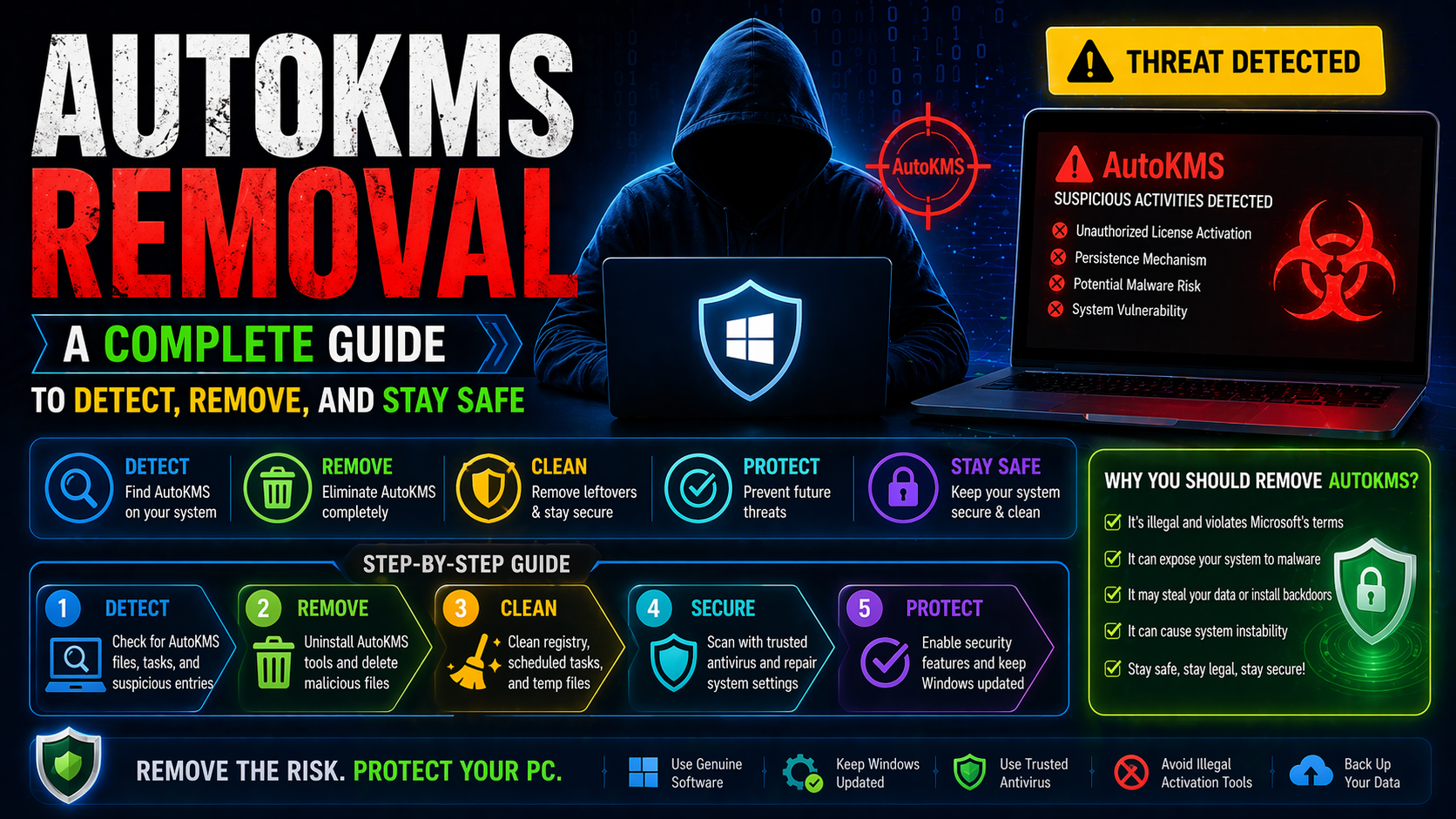
This article explains what AutoKMS is, why it can be dangerous, how it gets into your system, and most importantly, how you can remove it safely. Everything is explained in a simple and practical way so you can take action without confusion.
What is AutoKMS?
AutoKMS is a tool designed to activate Microsoft products without a valid license. It works by mimicking a Key Management Service server, tricking your system into thinking the software is officially activated. While this might sound convenient, the truth is that AutoKMS is not a legitimate tool. It is commonly distributed through unofficial websites, cracked software bundles, and suspicious downloads. Because of this, it is often flagged by antivirus programs as a potential threat. Even though some users intentionally install it, many others find it on their systems without knowing how it got there.
Why AutoKMS is Risky
The biggest problem with AutoKMS is not just the illegal activation. The real danger lies in what comes with it. AutoKMS files are frequently bundled with hidden malware. These can include spyware, keyloggers, or backdoor programs that allow hackers to access your system remotely. Once installed, these threats can quietly run in the background, collecting sensitive data like passwords, banking details, or personal files.
Another issue is that AutoKMS often disables security features. It may turn off antivirus protection or create exceptions in your firewall, making your system more vulnerable to future attacks. Even if your computer seems to be working fine, there could be hidden processes running without your knowledge.
How AutoKMS Gets Installed
AutoKMS usually enters a system through unofficial downloads. This includes cracked software, pirated games, or modified applications shared on unreliable websites. Sometimes, it is included as part of a bundle. You install one program, and AutoKMS gets installed alongside it without clear permission. In other cases, fake installers trick users into thinking they are activating software safely.
Email attachments and suspicious links can also be a source. A single click on the wrong file can lead to unwanted software being installed. Because of these methods, many users don’t even realize when AutoKMS first appears on their system.
Signs Your System May Have AutoKMS
There are several warning signs that indicate AutoKMS might be present on your computer. You might notice unknown programs running in the background. Your antivirus could show alerts or warnings related to activation tools. Sometimes, a file named AutoKMS.exe appears in your system folders. Another sign is repeated activation messages or scheduled tasks that run automatically. AutoKMS often creates tasks to keep reactivating software every few days. In some cases, your system may become slower or behave strangely. Unexpected pop-ups or unusual network activity can also indicate a problem. These signs should not be ignored, as they often point to deeper security issues.
How to Remove AutoKMS Safely
Removing AutoKMS is not just about deleting one file. You need to ensure that all related components are completely removed to prevent it from coming back. Start by opening your Task Manager and checking for any suspicious processes. If you find AutoKMS or anything unfamiliar, end those tasks carefully. Next, go to your installed programs and look for anything related to AutoKMS or unknown software. Uninstall them one by one. Take your time and make sure you don’t skip anything that looks suspicious. After that, check the Task Scheduler. AutoKMS often creates scheduled tasks to run automatically. Delete any tasks that seem related or unfamiliar.
Now run a full system scan using a trusted antivirus program. This step is important because it helps detect hidden files or malware that may have been installed alongside AutoKMS. Once the scan is complete, follow the recommendations to remove any threats found. Finally, restart your computer and check again to make sure everything is clean.
Manual Cleanup Steps
Sometimes, basic removal is not enough. In such cases, a manual cleanup can help. Open File Explorer and search for files related to AutoKMS. Delete them carefully. Also check temporary folders and system directories where such files might hide. Look into your startup programs and disable anything suspicious. This prevents unwanted software from launching when your system starts.
You can also check your system registry, but this step should be done carefully. Incorrect changes can affect your system. If you are not confident, it’s better to skip this step or use a trusted cleanup tool.
Preventing AutoKMS in the Future
Once you remove AutoKMS, the next step is to ensure it doesn’t come back. Avoid downloading cracked software or activation tools from unknown sources. These are the most common ways such programs enter your system. Always use official websites or trusted platforms when installing software. It might cost more, but it keeps your system secure.
Keep your antivirus software active and updated. Regular scans can catch threats before they cause damage. Be careful with email attachments and links. If something looks suspicious, it’s better not to click. Also, keep your operating system updated. Security updates help protect against new threats.
Is AutoKMS Always Malware?
This is a common question. Technically, AutoKMS itself is not always classified as a virus. However, because of how it is distributed and used, it is considered unsafe. In many cases, it acts as a gateway for more serious threats. Even if the tool itself seems harmless, the risks associated with it are high. Security experts generally recommend removing it as soon as possible to avoid potential damage.
Legal and Ethical Concerns
Using AutoKMS is not just a security issue. It also raises legal concerns. Activating software without a valid license violates the terms of use. This can lead to penalties or restrictions from software providers. From an ethical perspective, using unauthorized tools affects the developers who create and maintain the software. Supporting official versions helps ensure continued updates and improvements.
What to Do After Removal
After removing AutoKMS, take a few extra steps to secure your system. Change your passwords, especially for important accounts like email, banking, and social media. If any data was exposed, this reduces the risk of misuse. Monitor your system for unusual activity. If you notice anything strange, run another scan or seek professional help. Consider reinstalling your operating system if the infection was severe. This ensures a completely clean environment. Finally, switch to genuine software versions. This not only improves security but also provides access to official updates and support.
Conclusion
AutoKMS might seem like a quick fix for activating software, but it comes with serious risks that are often overlooked. From hidden malware to weakened security, the consequences can be far more costly than expected. Removing AutoKMS requires careful steps, but it is completely possible with the right approach. Once your system is clean, focusing on prevention is the best way to stay safe. In today’s digital world, security should never be compromised for convenience. Taking the right steps now can save you from bigger problems later.

