Malware is no longer just an occasional nuisance that slows down a system. It has evolved into a serious threat capable of stealing personal data, tracking online activity, locking files, and even taking full control of your device. If your computer has started behaving unusually, there is a strong possibility that malicious software is present and needs immediate attention.
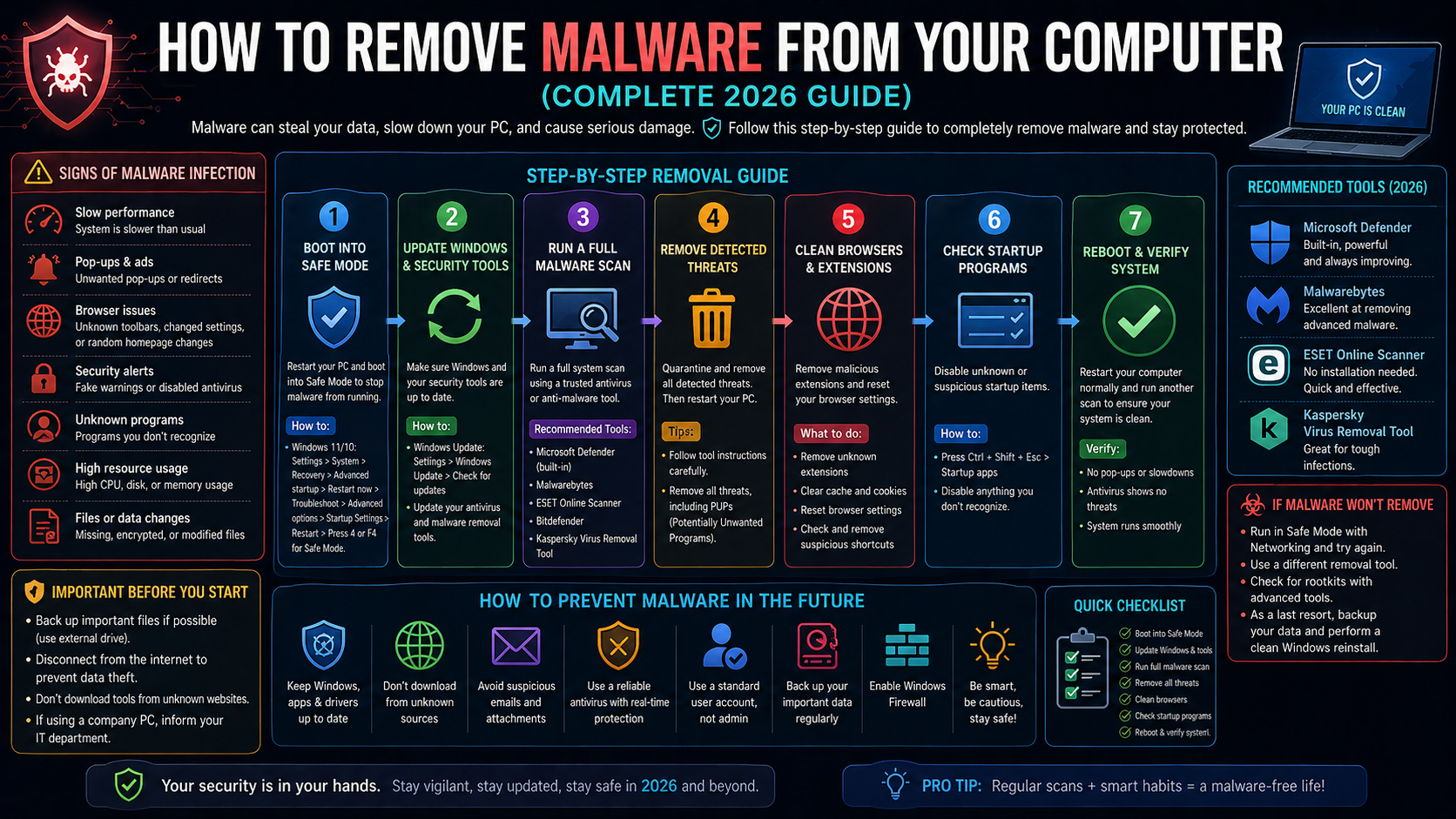
This guide explains exactly how to remove malware from your computer in a clear, practical, and human-friendly way so you can regain control of your system safely.
What Is Malware and Why It Matters
Malware is a broad term used to describe harmful software designed to damage or exploit devices and data. It includes viruses, spyware, ransomware, trojans, and other hidden threats that operate without your knowledge. What makes modern malware especially dangerous is how quietly it can run. In many cases, users do not even realize they are infected until serious damage has already occurred, such as stolen passwords or corrupted files.
How to Know If Your Computer Is Infected
A malware infection usually reveals itself through subtle but noticeable changes in your system’s behavior. Your computer may become unusually slow, programs might crash unexpectedly, or strange pop-up messages may appear even when you are not browsing the internet.
Another strong sign is the presence of unknown applications that you do not remember installing. In some cases, files may become inaccessible, renamed, or encrypted. Security software that suddenly stops working or updating can also indicate that malware is interfering with your system.
Disconnect Your Device Immediately
The first step in removing malware is to cut off its communication. Disconnect your device from the internet by turning off Wi-Fi or unplugging the network cable. This prevents the malicious software from sending your data to external servers or downloading additional harmful components. Acting quickly at this stage can limit the damage significantly.
Start Your Computer in Safe Mode
Safe Mode allows your system to run only essential processes, which makes it much easier to deal with malware. Many malicious programs rely on normal system operations to stay active, and Safe Mode can disable them temporarily.
Once your computer is running in this restricted environment, you gain better control over suspicious files and processes.
Run a Complete Malware Scan
A full system scan is one of the most effective ways to detect and remove malware. Use a reliable security tool and make sure you choose a deep scan rather than a quick scan. This process checks every part of your system, including hidden files and background processes. It may take some time, but it ensures that no threat is left undetected.
Remove All Detected Threats
After the scan is complete, your security software will display a list of detected threats. These should be removed or quarantined immediately. Quarantine is a safe option if you want to isolate files before deleting them permanently. Ignoring threats is never recommended, as even a single leftover file can allow malware to return.
Uninstall Suspicious Applications
Malware often installs additional programs that continue to cause problems even after the main threat is removed. Go through your installed applications and carefully review anything unfamiliar. If you see software you do not recognize or did not intentionally install, it is best to remove it. This step helps eliminate hidden components that security scans might miss.
Clear Temporary Files and Cache
Temporary files and cached data can sometimes store harmful scripts or fragments of malware. Cleaning these files not only improves performance but also reduces the chances of reinfection. This process removes unnecessary data that may otherwise give malware a place to hide.
Update Your System and Software
Outdated software creates vulnerabilities that malware can exploit. Once your system is clean, it is essential to update your operating system, browser, and all installed applications. Updates often include security patches that fix known weaknesses, making it much harder for future threats to enter your system.
Change All Your Passwords
Even after removing malware, there is a possibility that your personal information has been compromised. Changing your passwords ensures that any stolen credentials become useless. Focus on important accounts such as email, banking, and social platforms. Using strong and unique passwords adds an extra layer of protection.
What to Do If Malware Still Exists
Some types of malware are more persistent and may not be removed through standard methods. If your system continues to behave abnormally, you may need to take stronger action. Restoring your system to a previous state or reinstalling the operating system can completely eliminate deeply embedded threats. In more complex situations, seeking professional help may be the safest option.
How Malware Removal Actually Works
Modern security tools rely on multiple detection methods to identify threats. They compare files against known malware signatures, analyze suspicious behavior, and use intelligent techniques to detect unknown threats. Once identified, malicious files are isolated and removed without affecting essential system components. This layered approach ensures a higher success rate in detecting both common and advanced threats.
How to Prevent Malware in the Future
Prevention is always easier than removal. Practicing safe browsing habits and being cautious with downloads can significantly reduce your risk. Keeping your system updated, avoiding unknown links or attachments, and using reliable security tools are some of the most effective ways to stay protected. Awareness plays a major role in preventing future infections.
Quick Answer to Remove Malware
To remove malware from your computer, disconnect from the internet, start in Safe Mode, run a full system scan, remove all detected threats, uninstall suspicious programs, clear temporary files, update your system, and change your passwords.
Final Thoughts
Malware can feel overwhelming, especially if you are not familiar with how it works. However, with the right steps and a calm approach, it is possible to remove it completely and secure your system again. The key is to act quickly, follow a structured process, and take preventive measures afterward. A clean and secure computer not only protects your data but also gives you peace of mind while using your device.

